 Bongo Cat Encyclopedia
Customization
Gameplay · Bongo Cat
Customization is about where the cat lives on your screen and how big it is. The cat starts parked on the taskbar, but you can move, resize, and orient it to fit any setup.
How it works
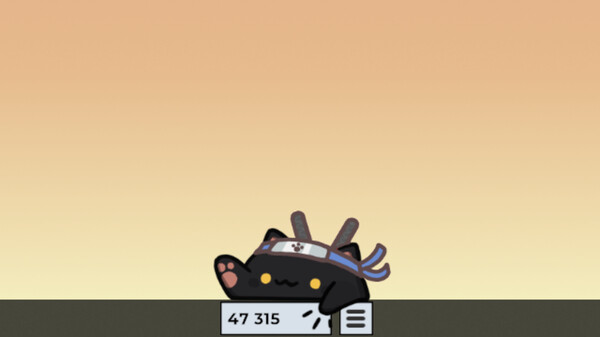
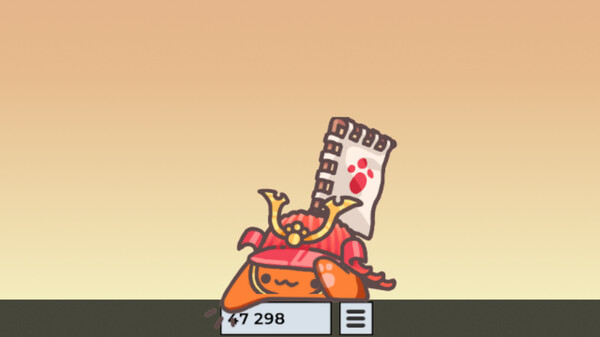
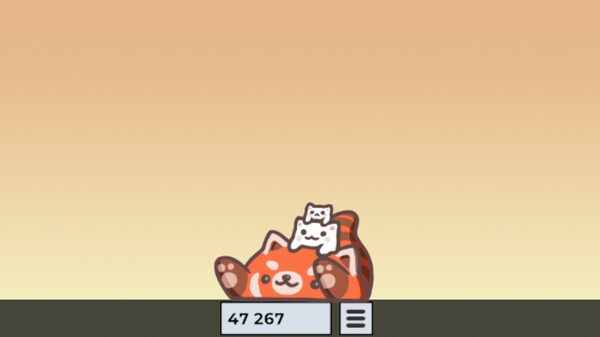
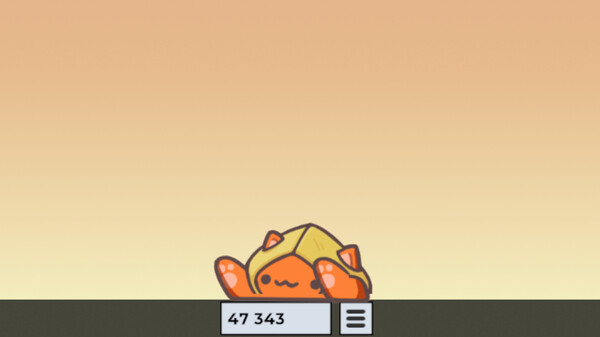
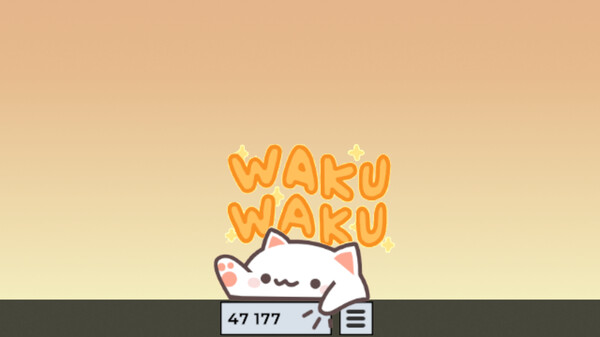
Drag the cat anywhere on your desktop — snapping pulls it neatly onto the taskbar on your main screen, Always on Top keeps it above other windows, and Disable Drag locks it in place once you are happy. The Scale setting resizes the cat, with Reset Position and Reset Scale one click away if an experiment goes wrong (F1 does the same instantly). F flips the cat's facing direction, and disabling the Bobbing idle animation switches the game to on-demand rendering, which the developers say can drastically cut GPU usage. Outfit customization — hats, skins, presets — lives in the inventory and equipment system.
Player tips
If a too-large scale ever swallows the cat beyond reach, press F1 right as the game starts to restore a sane size. Streamers and screenshot takers: disable Bobbing for a perfectly still cat and hide the counter with F2.
| Position | Drag the cat anywhere; snapping pulls it to the taskbar |
|---|---|
| Size | Scale setting with Reset Position and Reset Scale options |
| Facing | F flips the direction the cat faces |
| Idle Animation | Disabling Bobbing switches to on-demand rendering for lower GPU usage |